

Devs Guide On How to Install Linux On VM

  • Hello Guest! Welcome to ConsoleCrunch, to help support our site check out the premium upgrades HERE! to get exclusive access to our hidden content.
  • Unable to load portions of the website...
    If you use an ad blocker addon, you should disable it because it interferes with several elements of the site and blocks more than just adverts.
  • Read Rules Before Posting Post Virus Scans with every program.

Psycho_Coder

Active Poster
Retired Staff
Active Member
Apr 12, 2014
642
481
133
UK
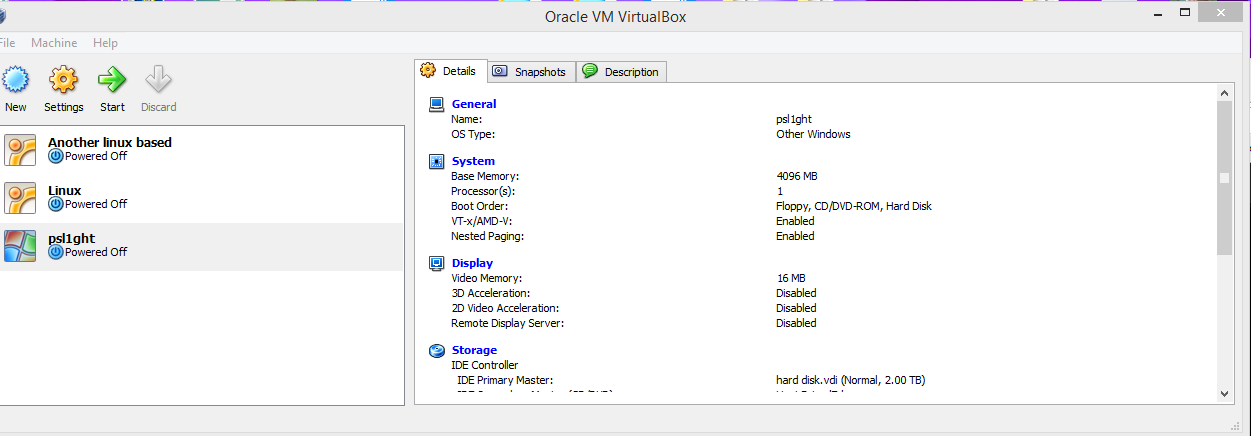
Sup, guys. Today I am going to show you have to install Linux on a VM(Virtual Machine). Firstly, You need to get the VM, you can go and get it Here. also you are going to want to download the Linux Iso. Today we are going to be using kali Linux. You can download the Iso Here. Ok once your installation went well with Virtual box, You will receive this when you successfully open it.
60d592e0e4173b8a2cc793bbb97b3ce8.png


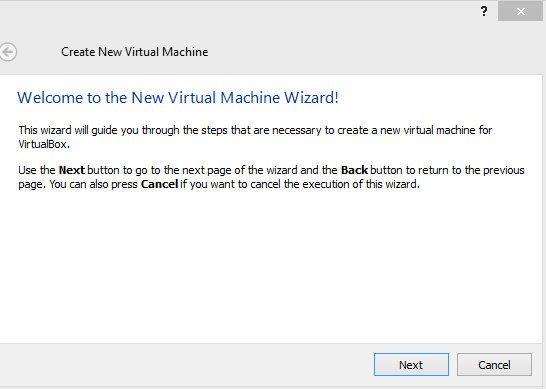
as you already see I already have 3 virtual computer set up on the left hand and side, so what you're wanting to do is to click on new in the top left. something like this will pop up.
e6660158c1999eb1e5856a7d130cee8a.png


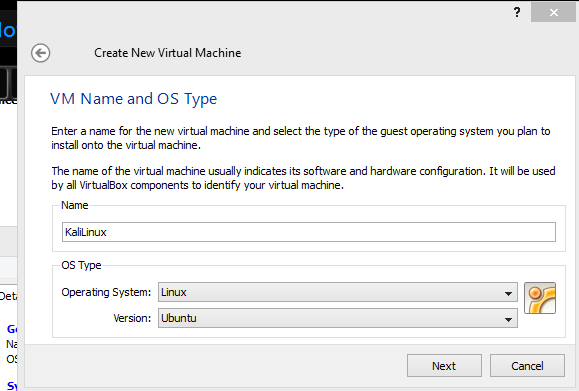
Click next now this is the most important part. Make sure you set out the options like this.
abeecbbfb30179bc16afadbd1eb2d1d3.png


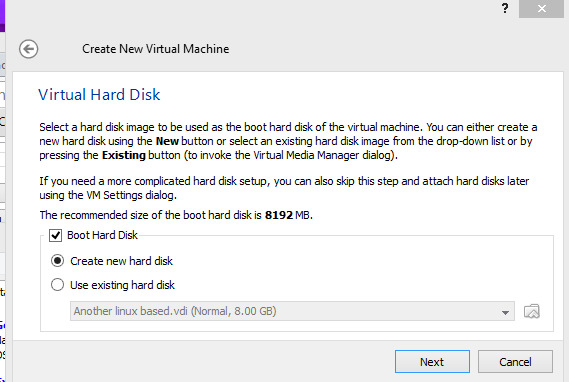
Click next and go through the steps until you come up to this bit.

Make sure it stays on create new hard disk!
419ff2494c285aa6360c88af86201c30.png


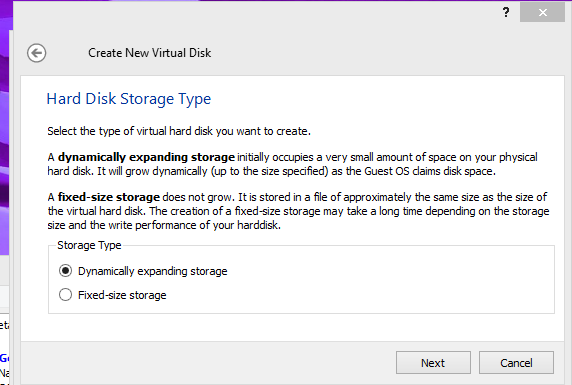
again keep on going through the steps and until you see this step make sure you choose fixed strorage.
1a3ab08b26ad4b0cd724d2afdae63f41.png


Now carry on until the end and press the finish button.

Now that is done. You will see something like this on the left hand side.

f9a61a2d060f91cd167b3bd2d8412808.png


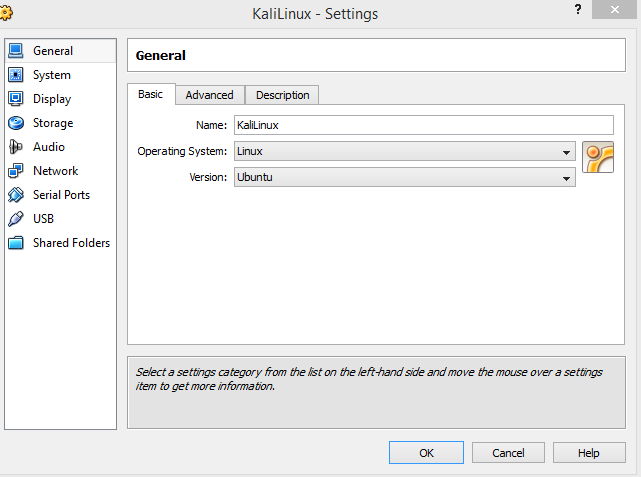
click once and where it says new at the top, click the one next to it, then once that is complete a window should pop up like this.
2cb420771ebf7177f844fc4da22ef22b.png


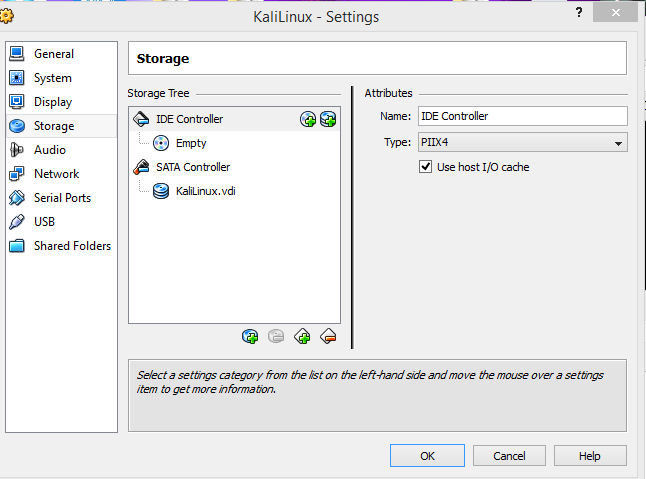
click on storage and it should look like this.
e76f8800dbc38b81429c9a62a9274b2c.png


under ide controller click on empty once and then you will see like a folder pop up on the right hand side.
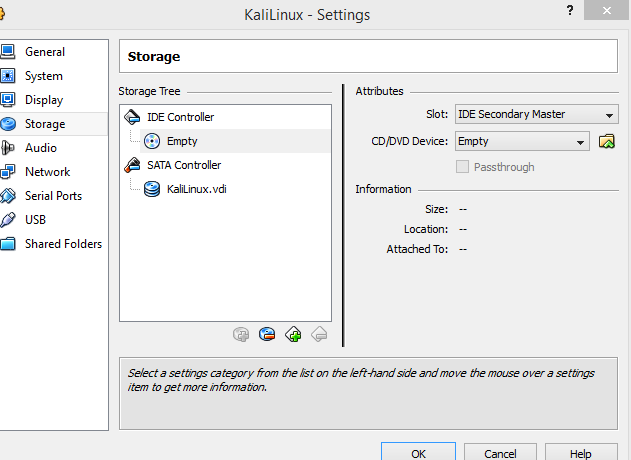
87eaa93d3f19ae54cec3bd928e3007e2.png


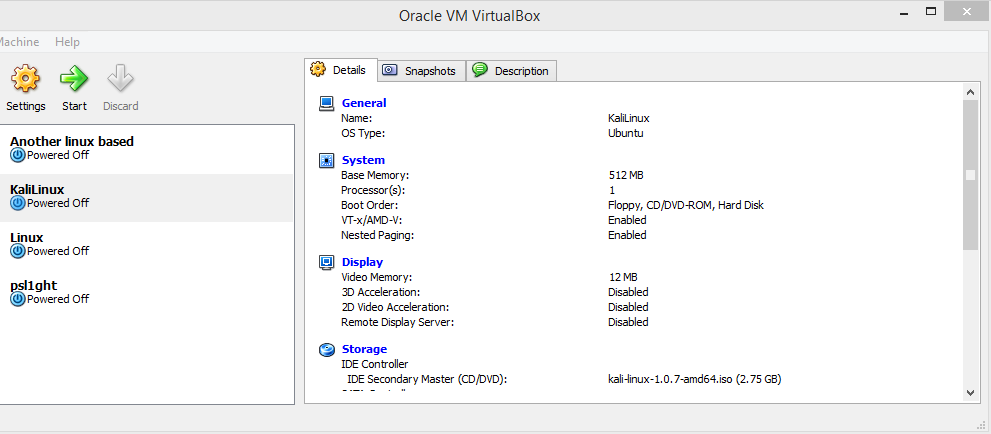
click it and browser for your iso(Linux file you downloaded). it should lool like this.
201d4901ed5de62a8ad788d3af9f826b.png


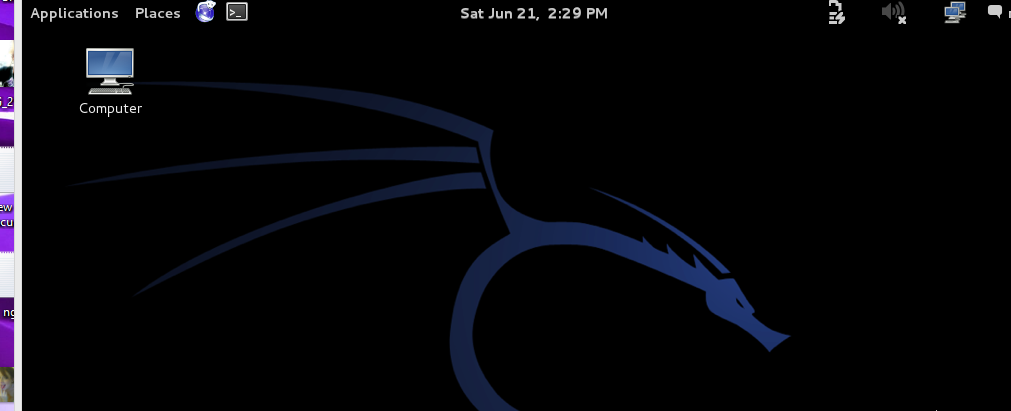
double click on kali linux and it should boot up.
a5adcb3da1b7028d5ef1b54a902d9d47.png


Enjoy!
 
  • Like
Reactions: Nostafaru
Sup, guys. Today I am going to show you have to install Linux on a VM(Virtual Machine). Firstly, You need to get the VM, you can go and get it Here. also you are going to want to download the Linux Iso. Today we are going to be using kali Linux. You can download the Iso Here. Ok once your installation went well with Virtual box, You will receive this when you successfully open it.

60d592e0e4173b8a2cc793bbb97b3ce8.png


as you already see I already have 3 virtual computer set up on the left hand and side, so what you're wanting to do is to click on new in the top left. something like this will pop up.

e6660158c1999eb1e5856a7d130cee8a.png


Click next now this is the most important part. Make sure you set out the options like this.

abeecbbfb30179bc16afadbd1eb2d1d3.png


Click next and go through the steps until you come up to this bit.

Make sure it stays on create new hard disk!

419ff2494c285aa6360c88af86201c30.png


again keep on going through the steps and until you see this step make sure you choose fixed strorage.

1a3ab08b26ad4b0cd724d2afdae63f41.png


Now carry on until the end and press the finish button.

Now that is done. You will see something like this on the left hand side.

f9a61a2d060f91cd167b3bd2d8412808.png


click once and where it says new at the top, click the one next to it, then once that is complete a window should pop up like this.

2cb420771ebf7177f844fc4da22ef22b.png


click on storage and it should look like this.
e76f8800dbc38b81429c9a62a9274b2c.png


under ide controller click on empty once and then you will see like a folder pop up on the right hand side.

87eaa93d3f19ae54cec3bd928e3007e2.png


click it and browser for your iso(Linux file you downloaded). it should lool like this.

201d4901ed5de62a8ad788d3af9f826b.png


double click on kali linux and it should boot up.
a5adcb3da1b7028d5ef1b54a902d9d47.png


Enjoy!
Nice tutorial ;)
 
General chit-chat
Help Users
  • Chat Bot:
    ANGUS0023233 has joined the room.
  • Chat Bot:
    xorscripts is our newest member. Welcome!
  • Chat Bot:
    rrs88acom is our newest member. Welcome!
  • Chat Bot:
    QM|T has joined the room.
  • Chat Bot:
    ANGUS0023233 has joined the room.
  • Chat Bot:
    fabow179 is our newest member. Welcome!
  • Chat Bot:
    vsbet1digital2 is our newest member. Welcome!
  • Chat Bot:
    QM|T has joined the room.
  • Chat Bot:
    gamebaidoithuong35com is our newest member. Welcome!
  • Chat Bot:
    sk8rfallen is our newest member. Welcome!
  • Chat Bot:
    ao88network is our newest member. Welcome!
  • Chat Bot:
    Xnseals is our newest member. Welcome!
  • Chat Bot:
    luckywin1dev2 is our newest member. Welcome!
  • Chat Bot:
    hitclubpress is our newest member. Welcome!
  • Chat Bot:
    ANGUS0023233 has joined the room.
  • Chat Bot:
    hi88scom2 is our newest member. Welcome!
  • Chat Bot:
    hitclubpro is our newest member. Welcome!
  • Chat Bot:
    QM|T has joined the room.
  • Chat Bot:
    keonhacai188commx is our newest member. Welcome!
  • Chat Bot:
    88vbethealth1 is our newest member. Welcome!
  • Chat Bot:
    fly88unooo is our newest member. Welcome!
  • @ Karisma:
    Woah this sites still around, crazy!
  • Chat Bot:
    jun88vipnet2 is our newest member. Welcome!
  • Chat Bot:
    jun88vipnet2 has posted a new profile post.
  • Chat Bot:
    e39cconline1 is our newest member. Welcome!
      Chat Bot: e39cconline1 is our newest member. Welcome!